Overview
Get to know your way around the app.
Interface
Get familiarized with key interface elements of the Logsteer app:
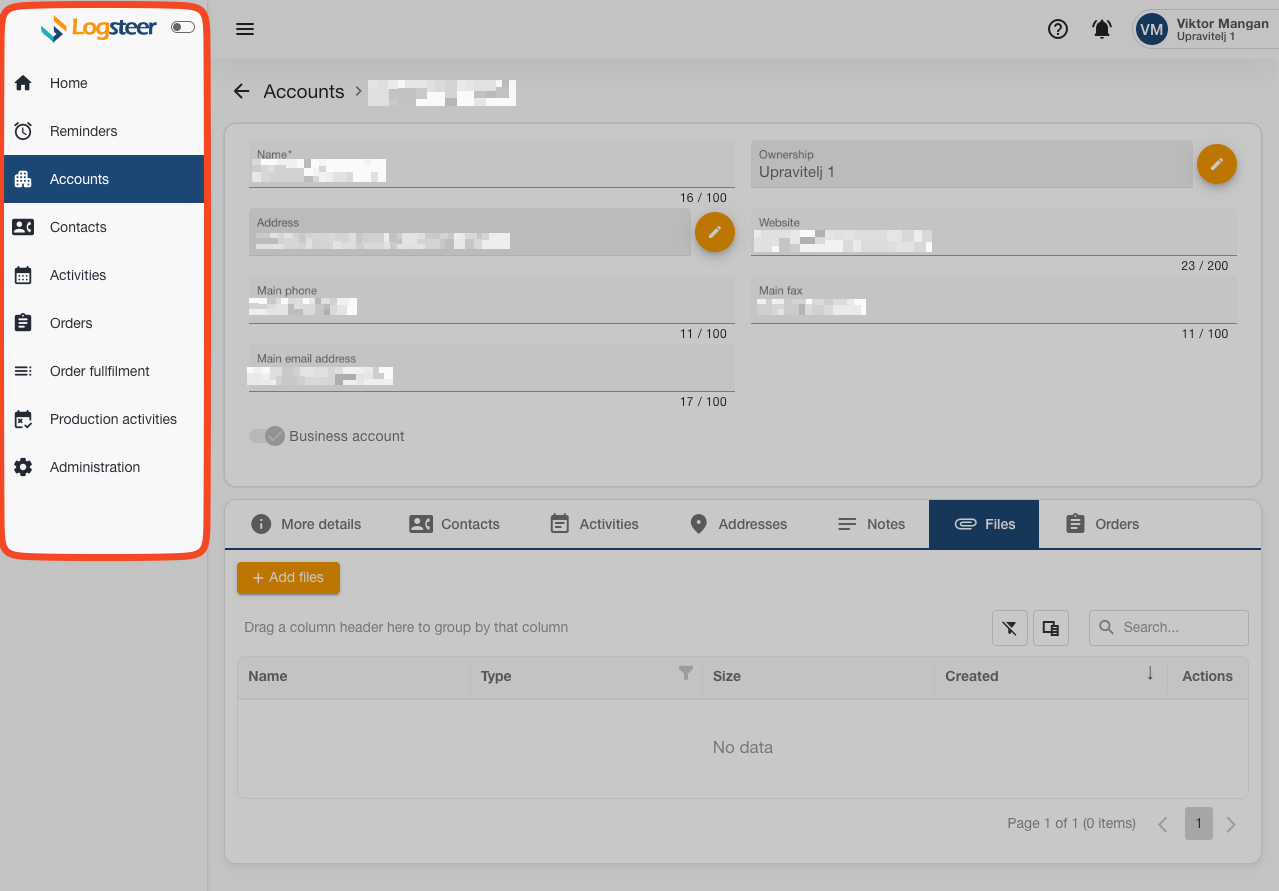
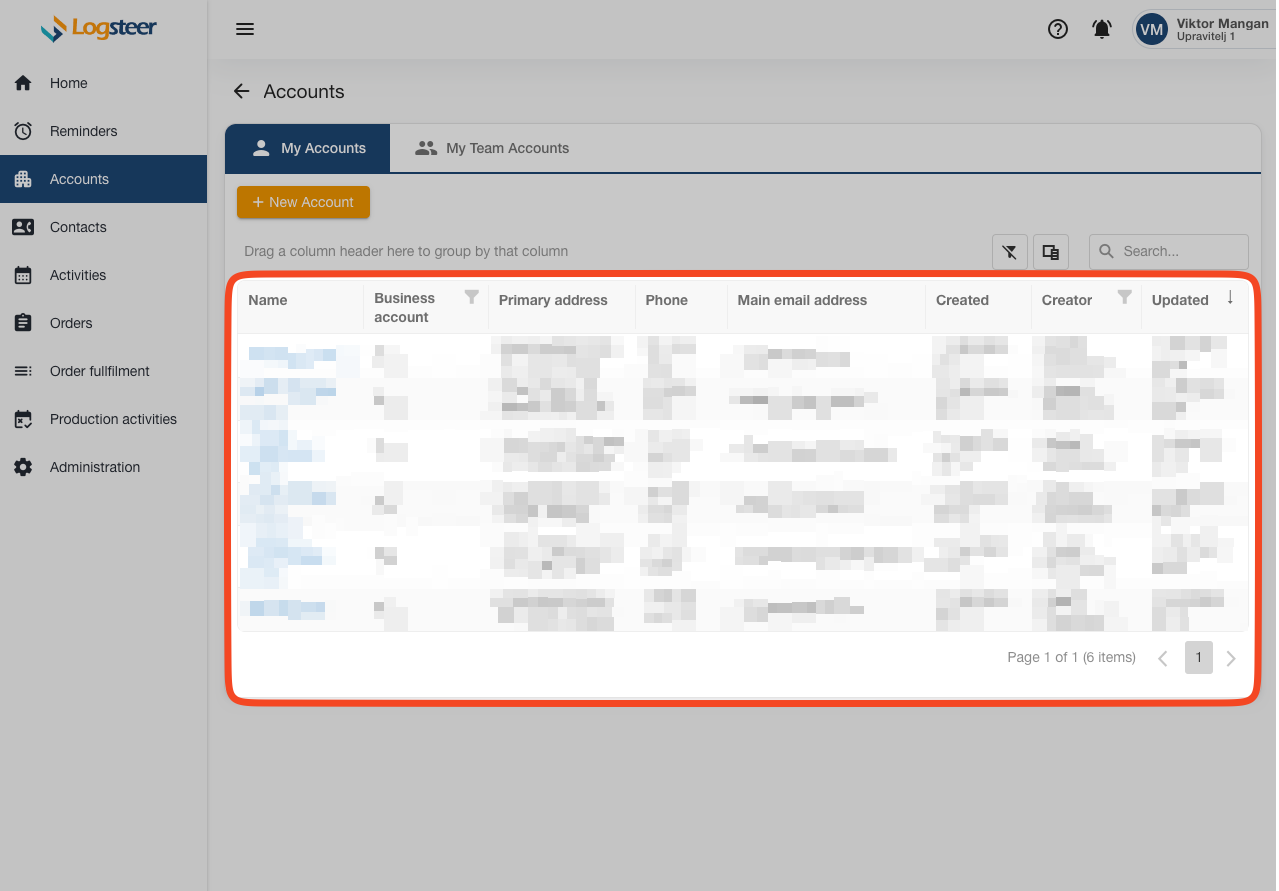
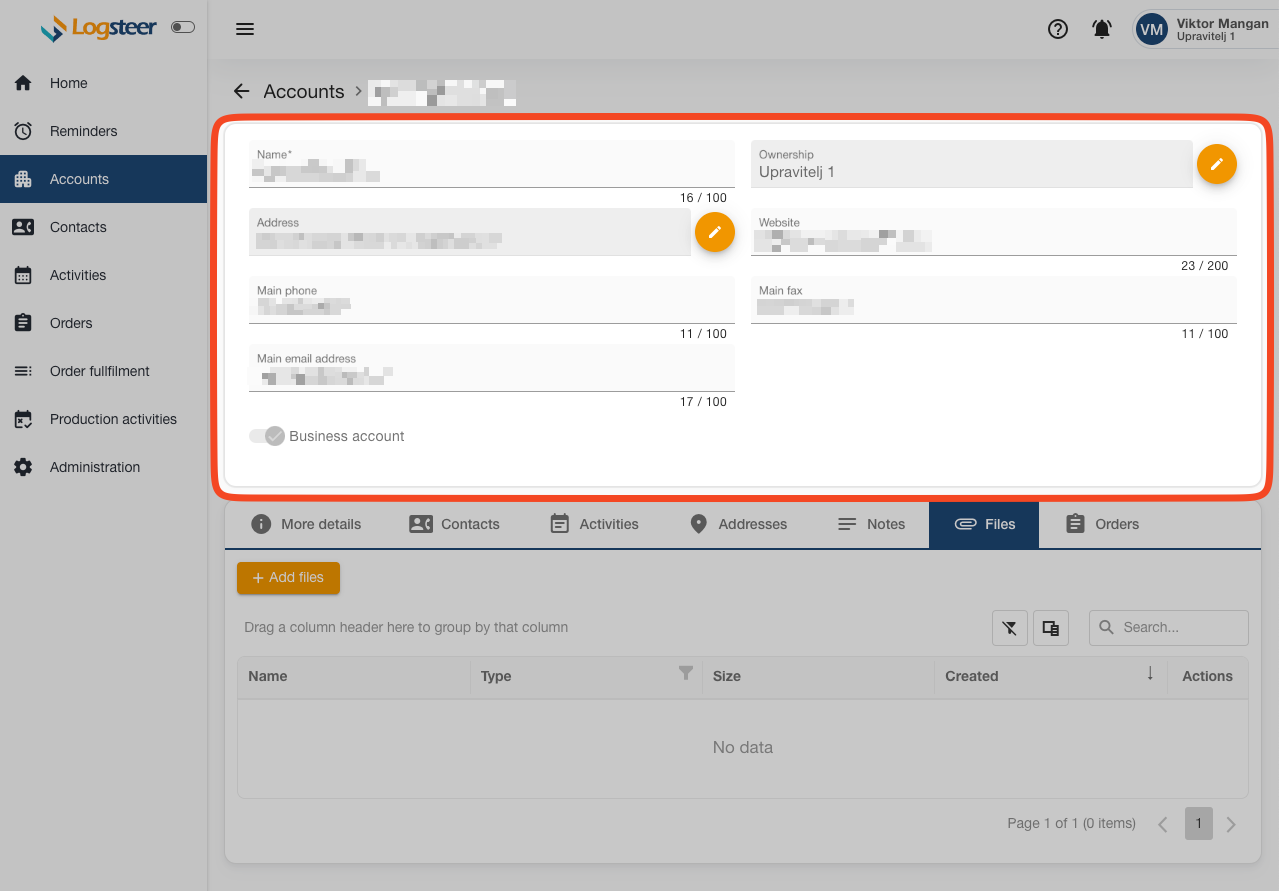
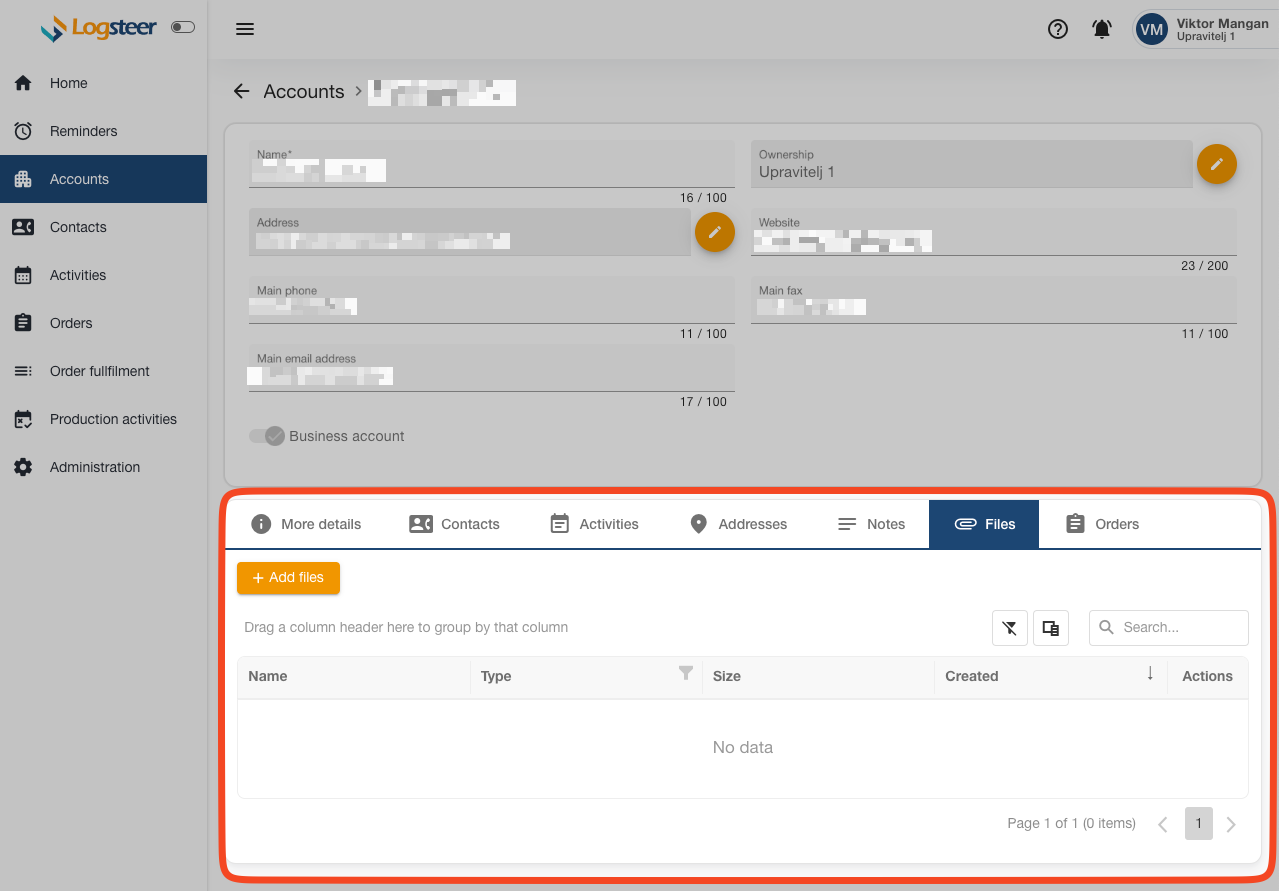
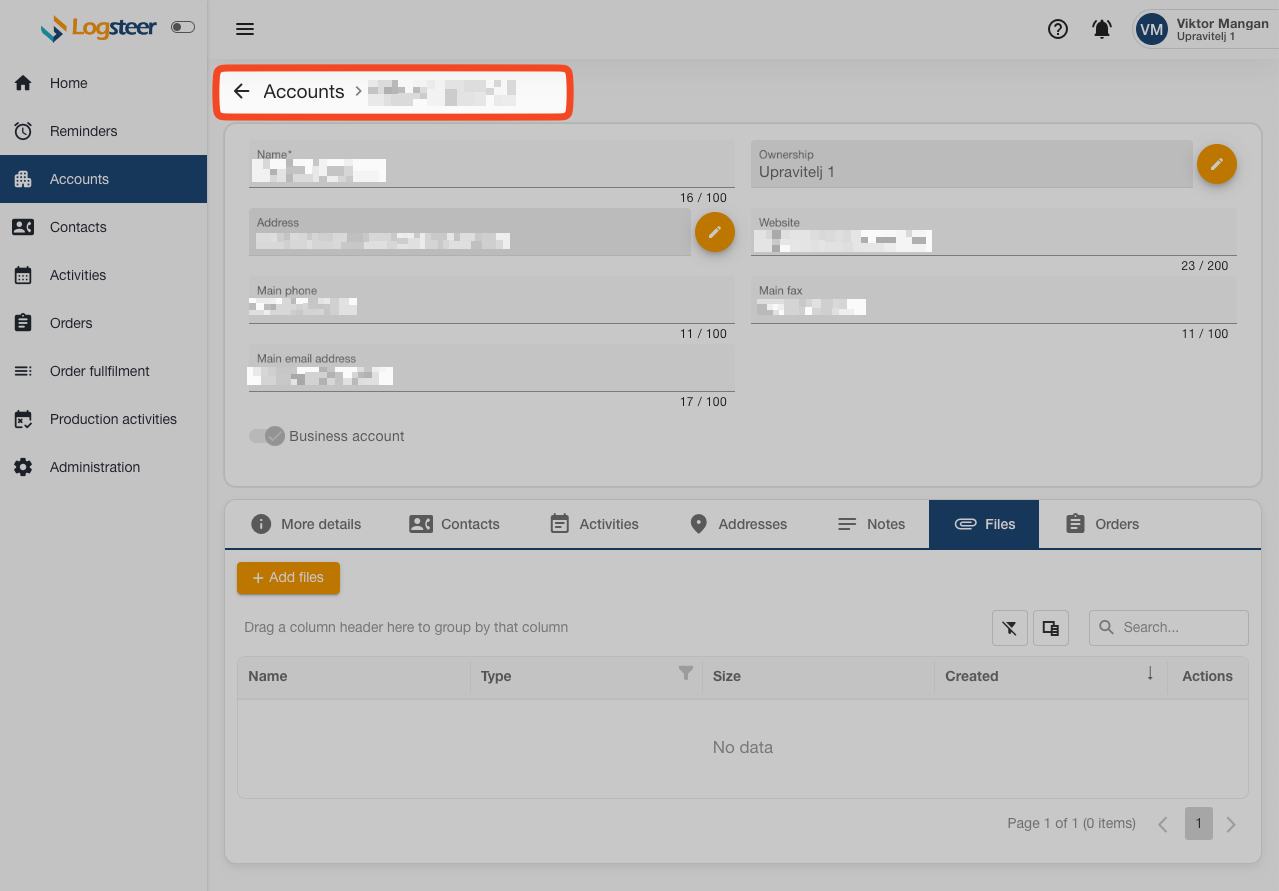
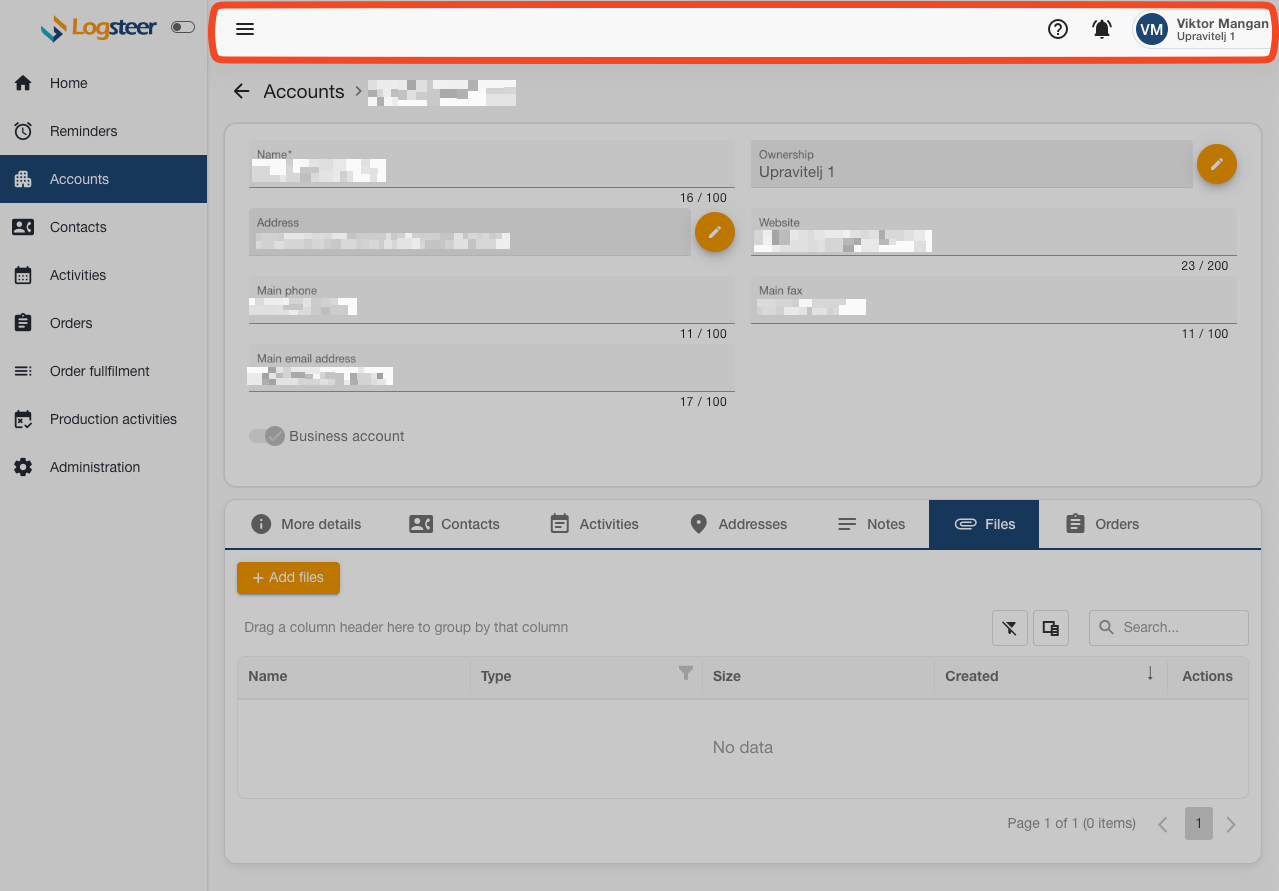
.
Here are more details:
| Component | Description |
|---|---|
| Main menu | The main menu of Logsteer app is the central navigation hub that provides you with access to the app's core features and functionalities called Screens |
| List table | Component that displays a list of records or data entries from a specific View within the Logsteer system. List tables are commonly used to provide users with a quick and concise view of multiple records, allowing them to efficiently manage and interact with the data |
| Form table | They are used to input, edit, and display detailed information for a specific record or data entry. Form tables are designed to capture and present comprehensive details about a particular entity |
| Child tabs | This is Logsteer design pattern where related or subsidiary data records are organized as Child tabs within the context of a parent record. This design approach allows users to view and manage various types of associated data without navigating away from the primary record |
| Breadcrumps | They show users the path they have taken to arrive at their current location within an app. Breadcrumbs provide a hierarchical trail of links that represent the user's navigation history, helping them understand their location within the app's structure and allowing them to quickly backtrack or navigate to a higher-level page |
| Topbar | It provides quick access to important information and actions such as User Profile, Help and Notification Center |
It is also important to understand difference between different containers:
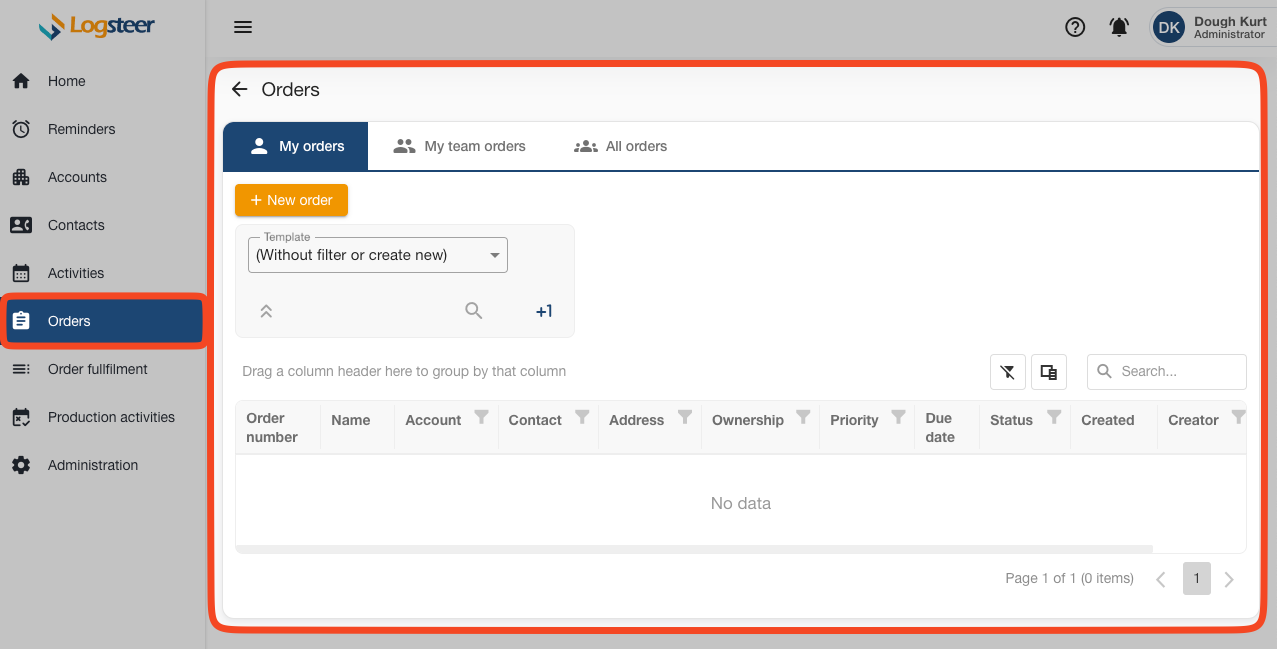
A Screen is an object that contains a collection of related Views. A Screen is associated with a major area of the enterprise, such as Accounts, Contacts, Tasks, or Orders. All Views in a Screen typically reference the same business object.
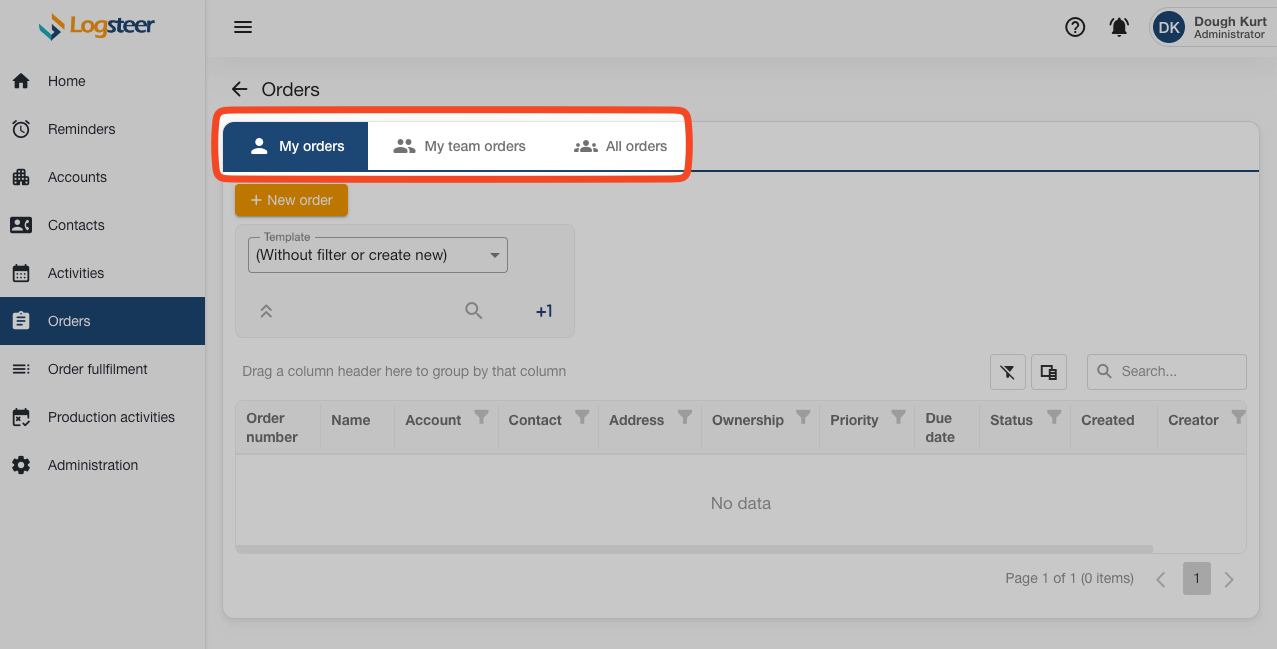
A view is an object that contains a collection of related tables or forms. A view can contain lists, forms, charts, and other types of items. Most views are a master-detail view or a list-form view. A view is associated with the data and relationships that exist in a single entity.
Basic search
Searching in Logsteer is easy and intuitive. You can search any List table using Basic search.
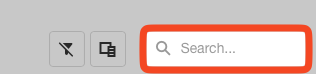
Basic search filters table in-place against all rows and columns.
Go to Advanced Filters to find out more about next-level searching possibilities.
Creating or assigning records
In Logsteer, you can either create new records, such e.g. Account, Contact, Orders ,... or you can also assign existing records to existing Entities, e.g. you can assign existing Address to more then one Account.
New
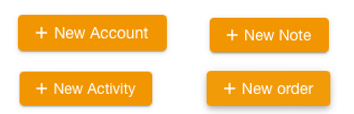
New or add button creates brand new record for particular entity.
Assign
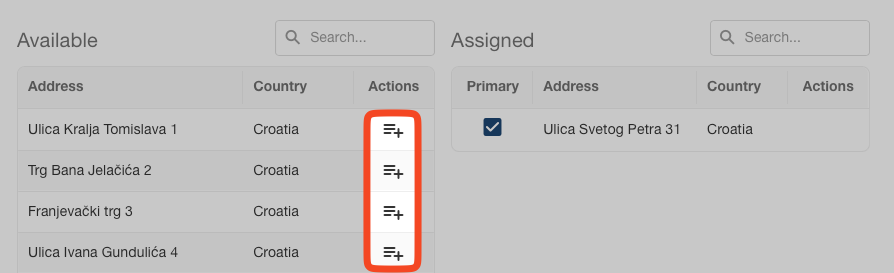
Association view allows you do assign one or more existing records as child record to parent entity.
Performing actions
Common ways to trigger an action is to:
- Click on a button
- Change field value
- Click on a action
- Automatically
Here are couple of examples:
You can create new Order Line Items (itemize your order) by pressing button  for it.
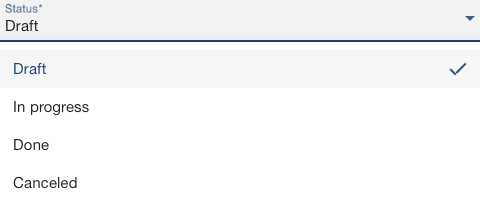
You can set your Order in motion and set it to running by changing its status via dropdown:
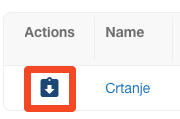
You can take-over Task and assign it to yourself by clicking on icon that shows in Action column like this:
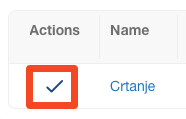
Similarly, to mark it quickly as done, you can just click on corresponding action icon:
Some actions happen automatically or implicitly, e.g. making whole record read-only when done, e.g. Orders that are in Status:Done become read-only.
Mobile or tablet view
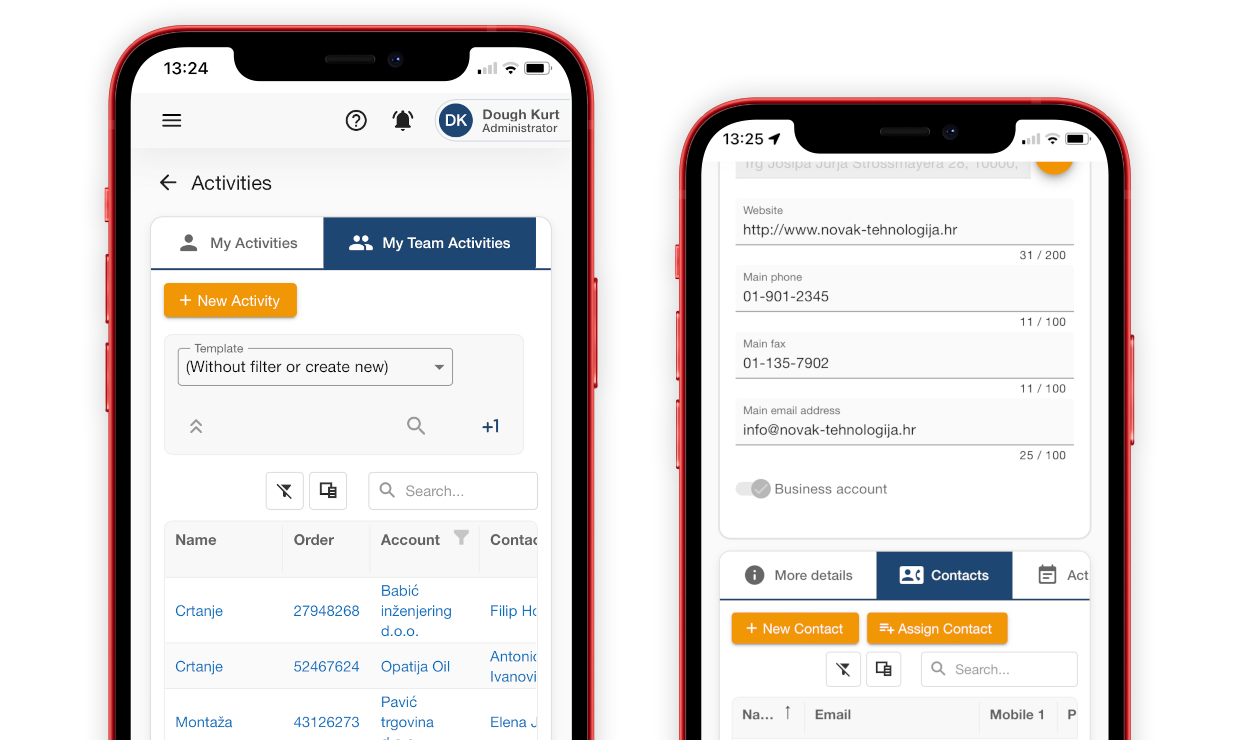
Logsteer is built on responsive design principles, so that it ensures a consistent and optimized user experience across various devices, screen sizes, and orientations.
List of synonyms
Here is the list of synonymity used across Logsteer:
| Item | Synonyms |
|---|---|
| Account | Company, Customer, Client, Partner, Vendor |
| Contact | Person, Individual |
| Task | Task, To-do, Operational task, Production task, External task, Internal task, Pipeline task or step, Manufacturing task or step |
| Order Line Items | Order row, Order item, Order product, Order asset |
| Employee | User, Login, Access |
| Position | Role, Data rights |
| Responsibility | Permissions, Views |